 SearchChamp
Connect BigCommerce
Connect your BigCommerce store to publish content and push SEO metadata to products.
Connecting BigCommerce makes your store a publish destination for blog posts and content pages, and lets SearchChamp write SEO metadata back to your catalog.
What you'll need
- Store owner access to create an API account in BigCommerce.
- Your store hash (it's in your control-panel URL).
Steps
Create a store-level API account
In BigCommerce, go to Settings → API accounts → Create API account and choose the store-level (V2/V3 token) type. Grant exactly these OAuth scopes:
| Scope | Access |
|---|---|
| Content | Modify |
| Products | Modify |
| Information & settings | Read-only |
| Sites & routes | Read-only |
A token minted with only some of these authenticates fine and then returns a 403 partway through a publish or a sync.
Copy your store hash
It's the identifier in your BigCommerce control-panel URL.
Paste them into SearchChamp
Go to Site Settings → Integrations, find BigCommerce under Other platforms, and select Connect. Paste the access token and store hash.
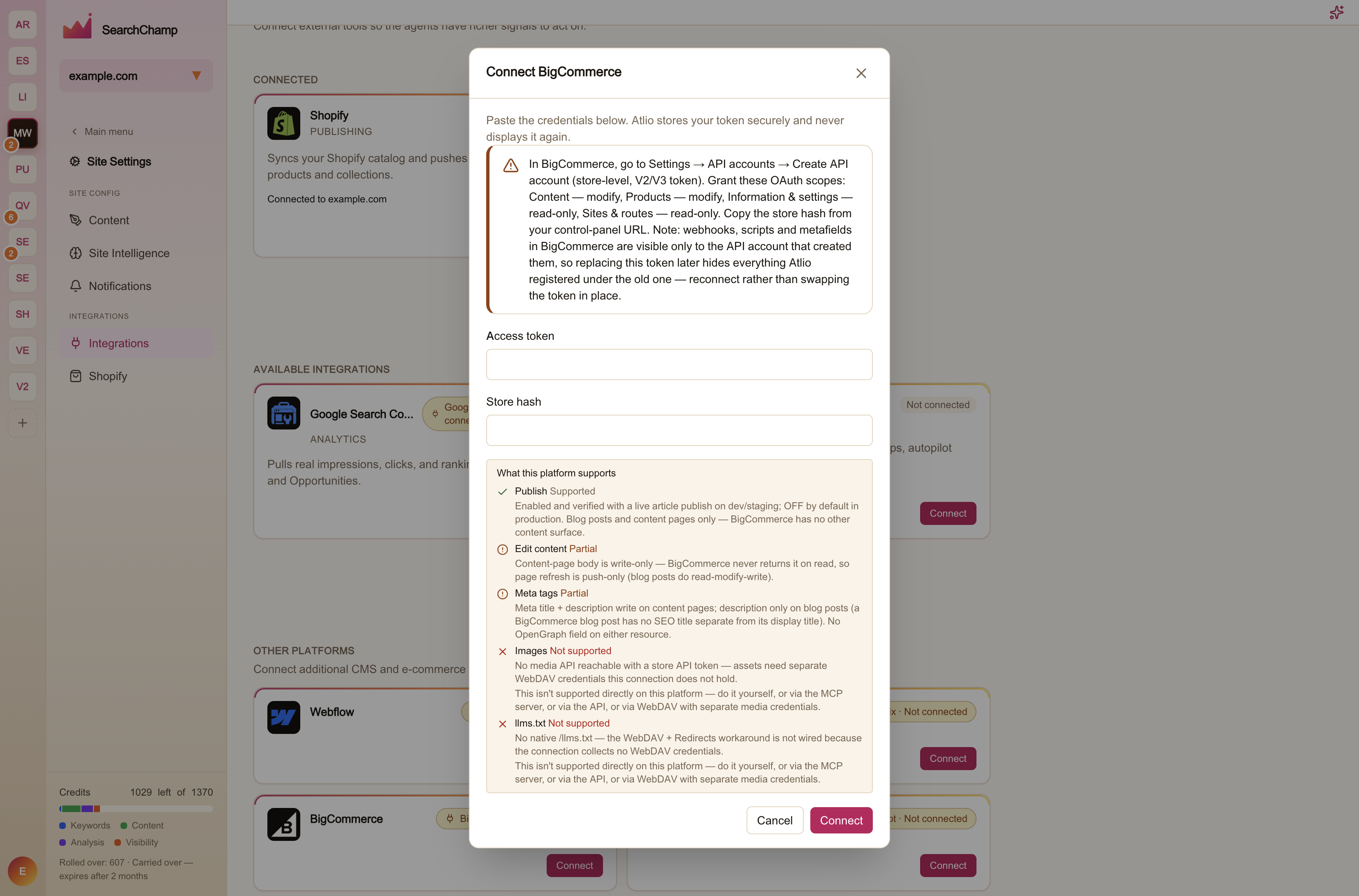
SearchChamp stores the token securely and never displays it again.
What BigCommerce supports
| Capability | Support |
|---|---|
| Publish | Supported — blog posts and content pages, the only content surfaces BigCommerce has |
| Edit content | Partial — a content page's body is write-only, because BigCommerce never returns it on read. Page refresh is push-only; blog posts read back normally |
| Meta tags | Supported |
| Images | Supported |
Don't swap the token in place
Webhooks, scripts, and metafields in BigCommerce are visible only to the API account that created them. If you replace this token later, everything SearchChamp registered under the old one — including the webhooks that keep your page inventory fresh — becomes invisible to us.
If you need to rotate credentials, disconnect and reconnect rather than pasting a new token over the old one.