 SearchChamp
Connect HubSpot
Publish articles to your HubSpot CMS blog with a private app token.
Connecting HubSpot makes your HubSpot CMS blog a publish destination, so finished drafts go live from the Content Writer.
What you'll need
- Super admin access in HubSpot, so you can create a private app.
Create the private app
In HubSpot, go to Settings → Integrations → Private Apps and create an app. Tick both CMS scopes:
| Scope | Why |
|---|---|
content (read + write) | Reading and writing blog posts and pages |
files (File Manager upload) | Uploading the images inside your articles |
files is the one people miss. Without it, the token authenticates fine, then every article containing an image fails to publish — and images are generated by default. llms.txt publishing fails too.
A HubSpot private app token covers your whole HubSpot account. HubSpot doesn't offer a per-site or per-blog token, so there's no narrower option to choose — treat this token like an admin credential.
Steps
Open the HubSpot connect dialog
Go to Site Settings → Integrations, find HubSpot under Other platforms, and select Connect.
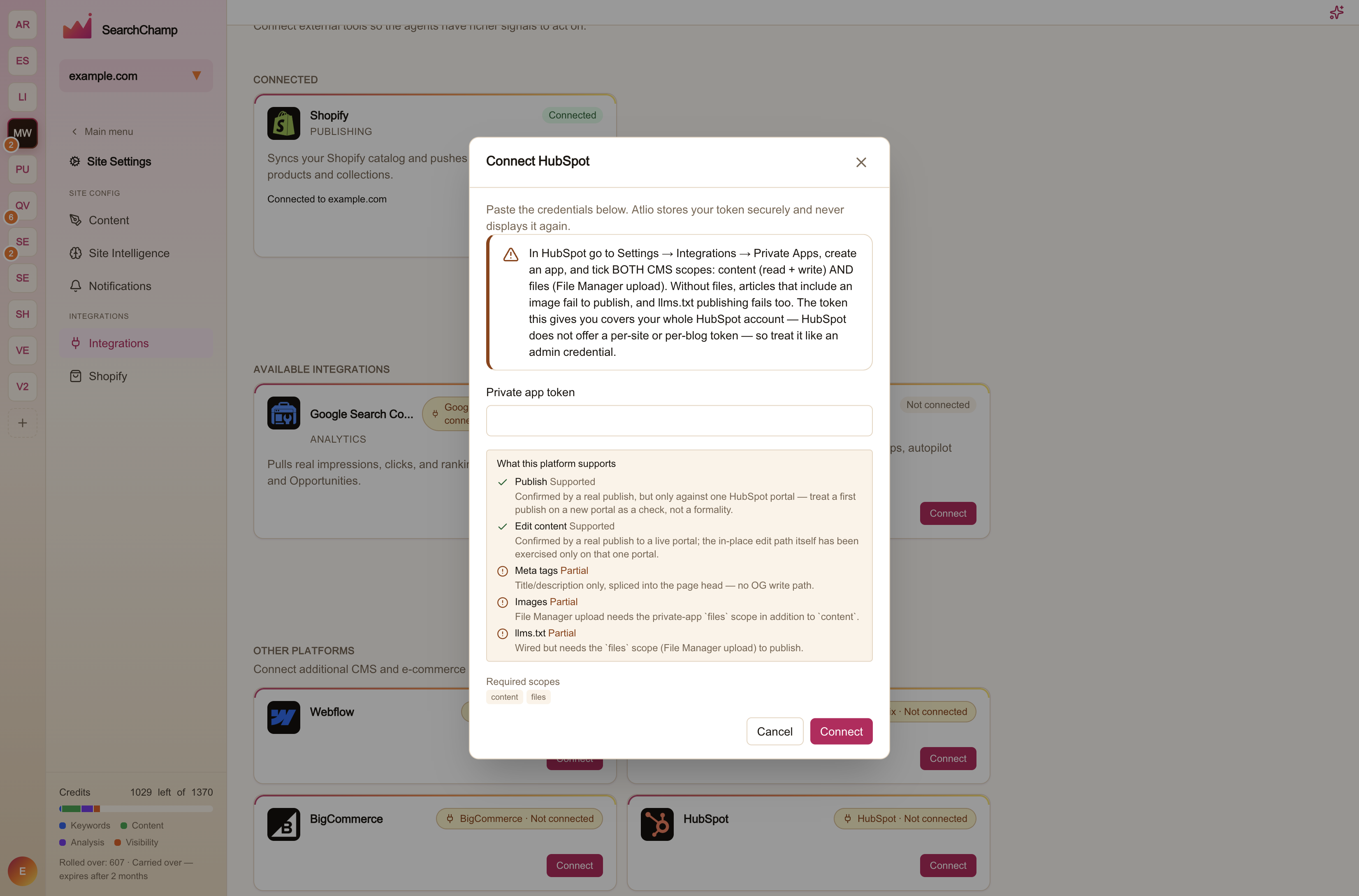
Paste the private app token
Paste the token and select Connect. SearchChamp stores it securely and never displays it again.
What HubSpot supports
| Capability | Support |
|---|---|
| Publish | Supported |
| Edit content | Supported |
| Meta tags | Partial — title and description only, spliced into the page head. There's no Open Graph write path |
| Images | Partial — File Manager upload requires the files scope alongside content |
| llms.txt | Partial — wired, but it also needs the files scope to publish |
Publishing has been confirmed by a real publish, but against one HubSpot portal. Treat your first publish on a new portal as a check rather than a formality.