 SearchChamp
Connect Gmail or Outlook
Connect your mailbox so backlink outreach pitches send from your own address.
Connecting Gmail or Outlook lets SearchChamp send backlink outreach pitches from your own address, so replies land in your inbox and the thread looks like it came from a person — because it did.
What you'll need
- A Gmail (Google) or Outlook (Microsoft) account you want outreach to send from.
- Editor access or above on the site — viewers can't connect or disconnect email.
What SearchChamp asks for
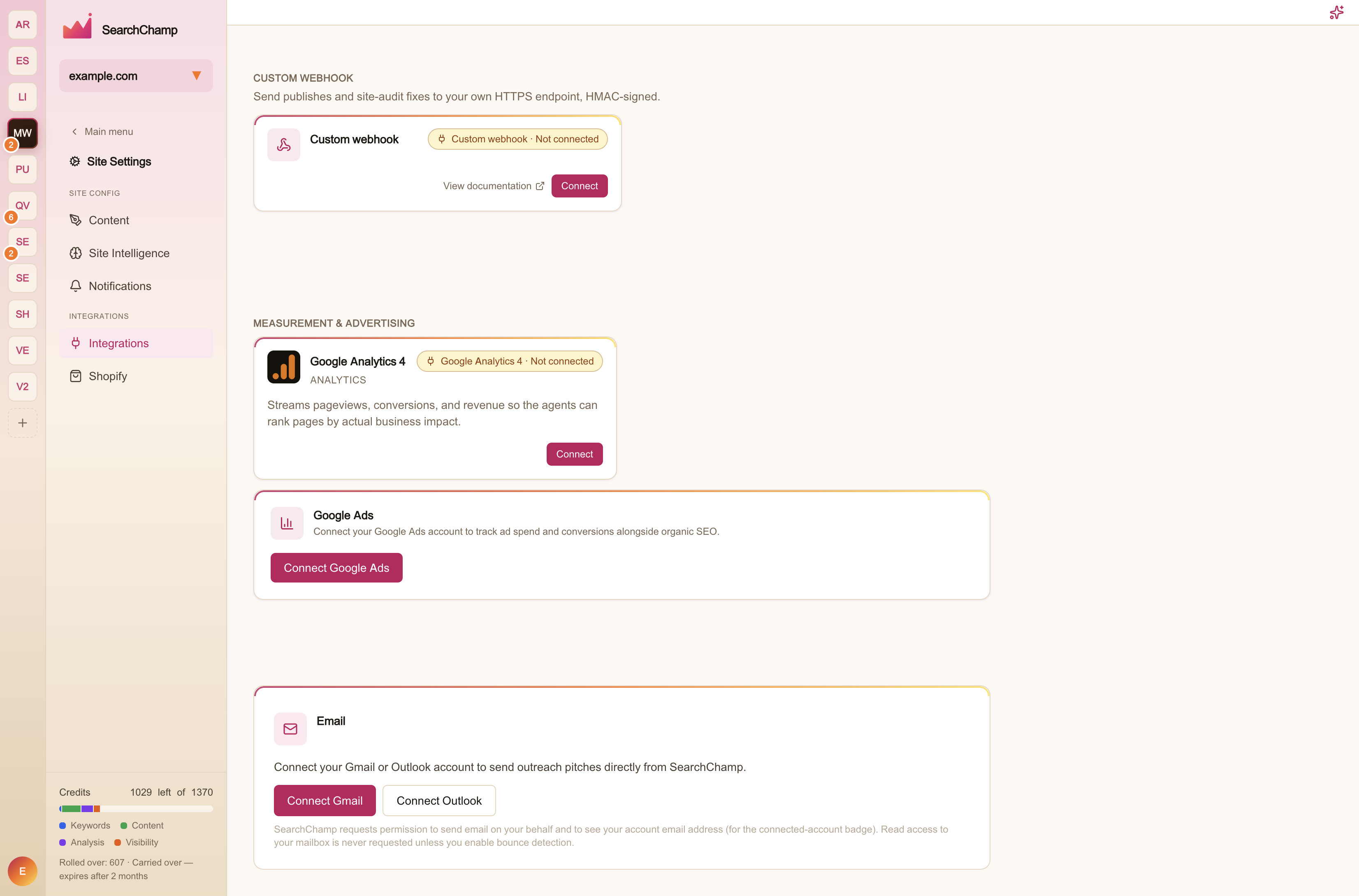
SearchChamp requests permission to send email on your behalf and to see your account email address (that's what the connected-account badge shows). Read access to your mailbox is never requested unless you turn on bounce detection.
Steps
Open Integrations
Go to Site Settings → Integrations and scroll to the Email panel at the bottom of the page.
Choose your provider
Select Connect Gmail or Connect Outlook. You'll be taken to Google or Microsoft to sign in and approve the permissions above.
Confirm the connected account
Back in SearchChamp, the panel shows Connected as your address. Outreach sent from Backlinks → Outreach now goes out from that mailbox.
If the connection expires
Mailbox tokens don't last forever. When one lapses, the panel says the token has expired and offers Reconnect Gmail or Reconnect Outlook — pitches stop sending until you do. Reconnecting is the same flow as connecting.
FAQs
Can I connect both Gmail and Outlook? Connect the one mailbox you want outreach to send from. Switch by disconnecting the current provider and connecting the other.
Is this the same as the email notifications I get from SearchChamp? No. This is the sending mailbox for outreach. Product notifications and the weekly digest are configured in Site Settings → Notifications.