 SearchChamp
Connect Wix
Publish articles and product SEO to your Wix site with an account API key.
Connecting Wix makes your Wix site a publish destination for articles, and lets SearchChamp write SEO metadata back to your Wix Stores products.
What you'll need
- Owner access to the Wix account the site belongs to, so you can create an API key.
Before you create the key
Wix API keys are created on your Wix account, not on a single site — so unless you restrict a key, it can reach every site in that account. When you generate it, limit it to just the site you're connecting.
But restrict the scope, not the permissions. The key needs all of the following, or publishing fails partway through:
| Wix permission | Why SearchChamp needs it |
|---|---|
| Blog | Creating and updating articles |
| Media Manager | Uploading the images inside your articles |
| Stores | Product SEO |
| Members | Author bylines |
| Site list | So the connect form can find your site |
A key missing Media Manager authenticates fine and then fails every article that contains an image.
Steps
Create the API key in Wix
In your Wix account settings, create an API key restricted to this site, with the permissions above.
Open the Wix connect dialog
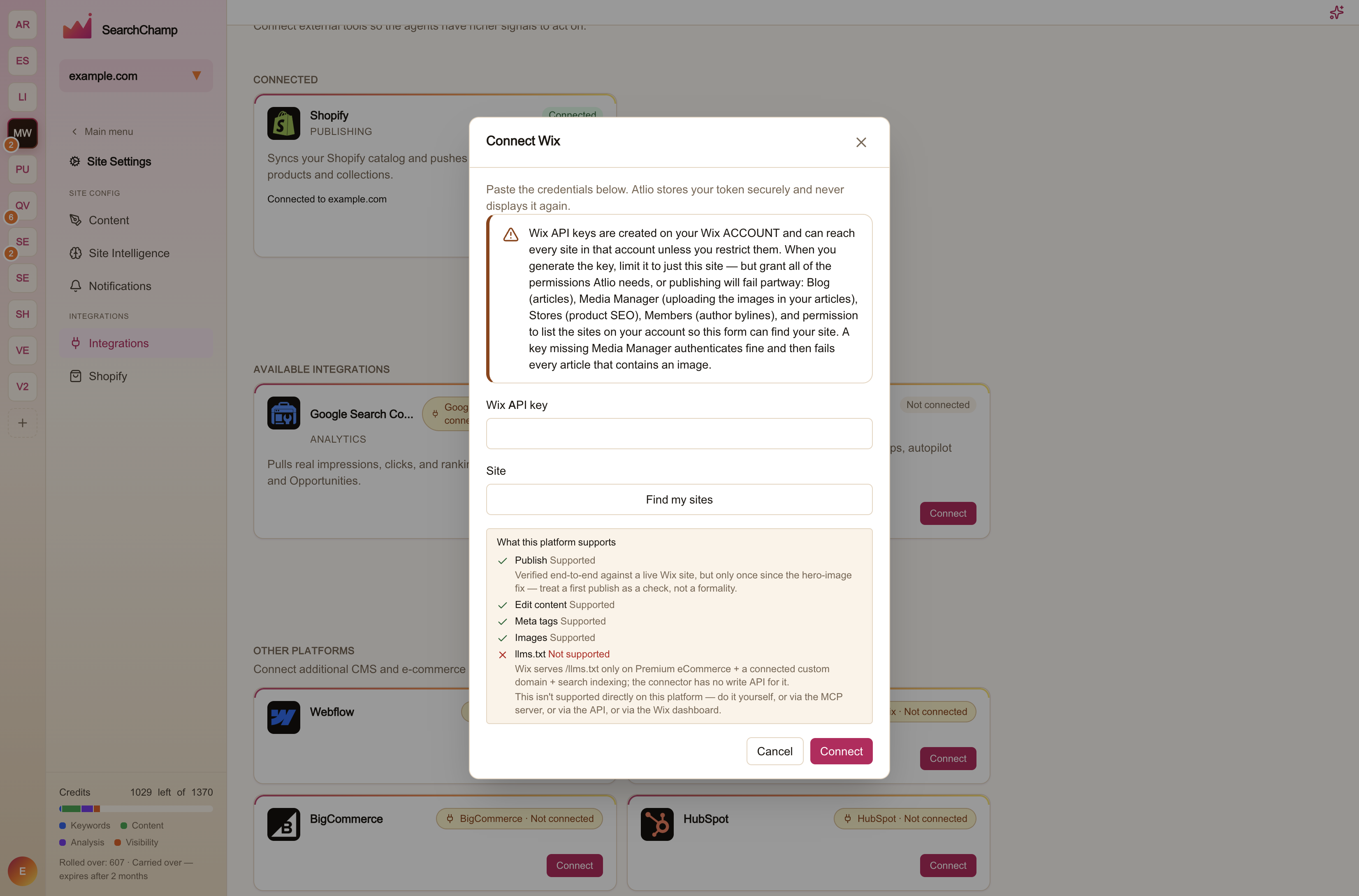
Go to Site Settings → Integrations, find Wix under Other platforms, and select Connect.
Paste the key and pick your site
Paste the Wix API key, then select Find my sites. SearchChamp uses the key to list the sites it can reach, so you pick yours from a list instead of hunting for an opaque site ID. Choose your site and select Connect.
What Wix supports
| Capability | Support |
|---|---|
| Publish | Supported |
| Edit content | Supported |
| Meta tags | Supported |
| Images | Supported |
| llms.txt | Not supported — Wix serves /llms.txt only on Premium eCommerce with a connected custom domain and search indexing on, and there's no write API for it |
To publish an llms.txt file on Wix, generate it in SearchChamp and add it yourself through the Wix dashboard, the API, or the MCP server.