 SearchChamp
Connect Slack
Send agent decisions — audit findings, ranking drops, autopilot drafts — to a Slack channel.
Connecting Slack gives the agents somewhere to talk. Instead of checking the app to find out what changed, audit findings, ranking drops, and autopilot drafts are posted to a channel you choose.
What you'll need
- A Slack workspace you can install an app into (most workspaces require an admin to approve this).
- Editor access or above on the site in SearchChamp.
Steps
Open Integrations
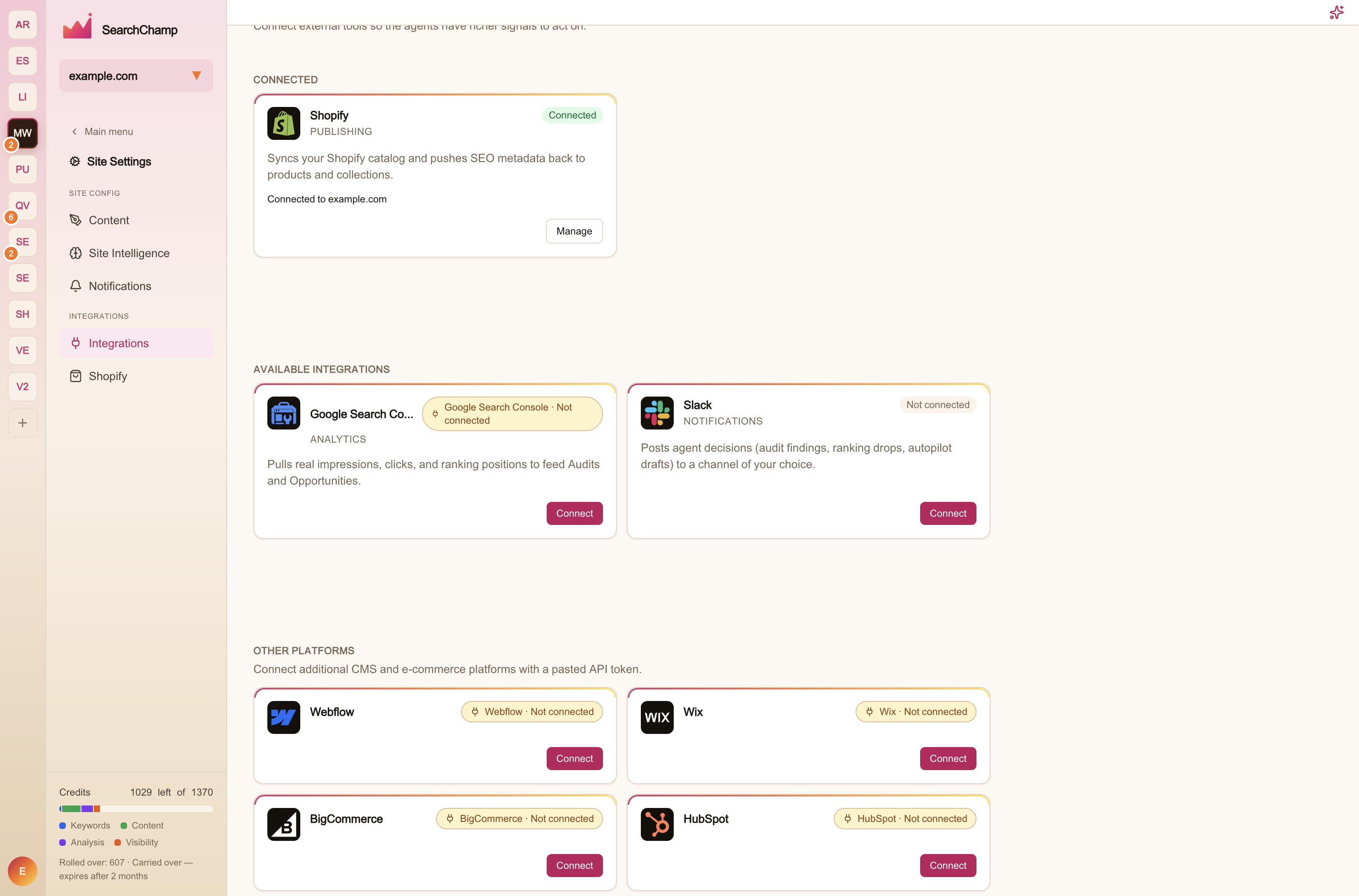
Go to Site Settings → Integrations. Slack sits under Available integrations while it's still disconnected.
Authorize in Slack
Select Connect. A Slack window opens asking you to pick a workspace and approve the app. Approve it and the window closes by itself.
If nothing happens, your browser has blocked the popup — allow popups for SearchChamp and try again.
Pick a default channel
Once the workspace is connected, the card asks you to Pick a default channel — this is where the agents post. Search your existing channels, or create a new one (public or private) straight from the picker without leaving SearchChamp.
The connected card then shows which workspace and channel it's posting to.
Changing the channel or disconnecting
Both live on the same card. Manage reopens the channel picker so you can point the agents somewhere else. Disconnect removes SearchChamp's access to your Slack workspace — it doesn't delete anything already posted.
FAQs
Which events get posted? Agent decisions: audit findings, ranking drops, and autopilot drafts. You control which events notify you, and through which channels, in Site Settings → Notifications.
Is this per site or per workspace? Per site. Each site connects its own Slack workspace and channel, so different sites can report to different teams.