 SearchChamp
Publish to WordPress
Connect WordPress so you can publish finished drafts straight from SearchChamp.
Connecting WordPress lets you send a finished draft live to your site in one step from the Content Writer — no copy-pasting or reformatting.
What you'll need
- Admin access to the WordPress site you want to publish to.
Steps
Open Integrations
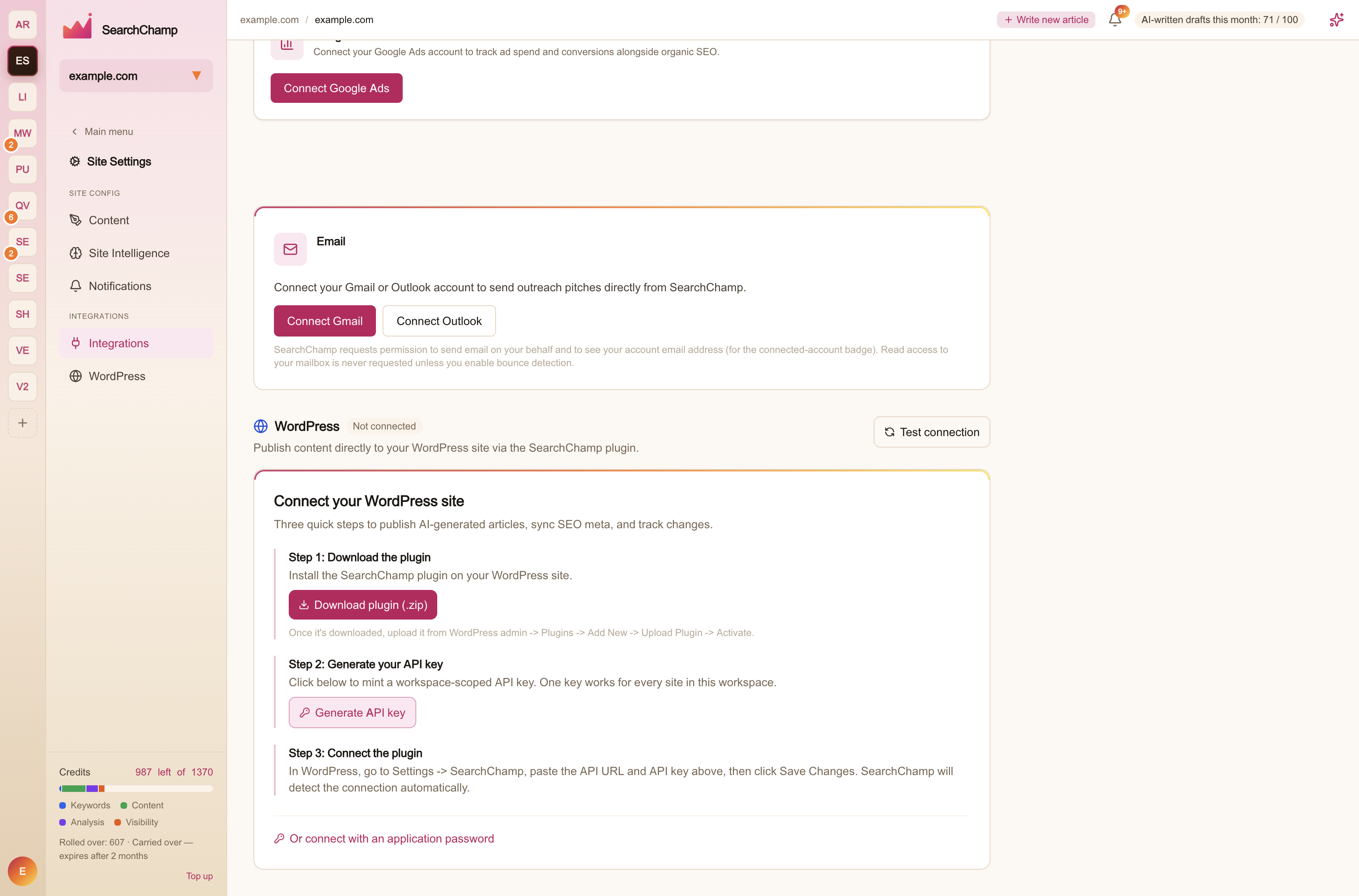
Go to Site Settings → Integrations and find WordPress. If it isn't connected yet, it shows Connect your WordPress site with three steps.
Install the plugin
Select Download plugin (.zip), then in WordPress go to Plugins → Add New → Upload Plugin, upload the file, and Activate it.
Generate your API key
Back in SearchChamp, select Generate API key. This mints a workspace-scoped key — one key works for every site in the workspace — and shows it alongside the API URL. Copy both.
Connect the plugin
In WordPress, go to Settings → SearchChamp, paste the API URL and API key, and select Save Changes. SearchChamp detects the connection automatically; the panel switches to Connected and names the plugin version it found.
Prefer not to install the plugin? Or connect with an application password offers the alternative flow.
Publish from Content
In the Content surface, open a draft that's Ready for review, Preview it, and Publish to send it to WordPress.
Checking and maintaining the connection
The connected panel gives you these controls:
- Test connection — for a plugin connection, pings your site and confirms the plugin is reachable and publishing will work. For an application-password connection, checks the saved application password with WordPress without changing anything on your site. If WordPress rejects it, create a new application password and reconnect.
- Rotate key — plugin connections only. Issues a new API key. Paste the new one into the plugin, or publishing stops.
- Disconnect — removes the connection. You can reconnect at any time.
View publish history & settings opens the full WordPress dashboard for the site.