 SearchChamp
Link Opportunities (legacy)
Review and apply suggestions in the earlier Internal Links workflow still available in some workspaces.
Legacy workflow
Some workspaces may still show Link Opportunities during the move to the cluster-based Internal Links experience. If you see Clusters instead, start with the current Internal Links workflow.
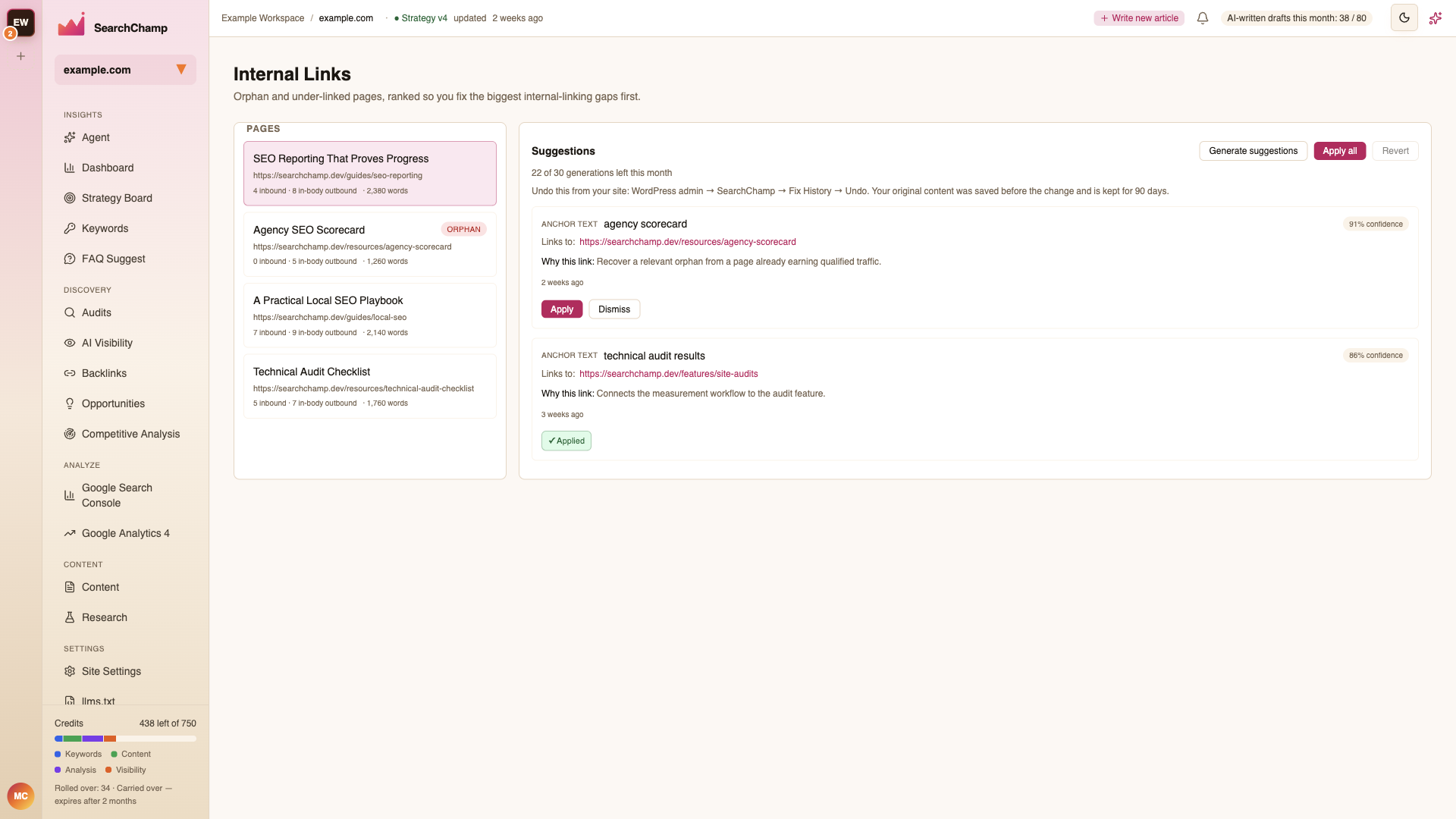
The legacy view ranks orphan and under-linked pages so you can work through the largest linking gaps first.
This illustration shows an earlier interface. Use the current placement, count, and preview explanations in this article.
Work through opportunities
Choose a source page
The page list distinguishes referring pages, destinations and contextual inbound/outbound counts. Referring-page totals include known shared navigation, footer and breadcrumb links; repeated anchors do not create extra referring pages. Missing contextual evidence is unknown, not zero. A Nav only badge identifies complete shared-only support, while Orphan means no other page links to the destination. Select a page to inspect its evidence and load suggestions.
Generate suggestions
Choose Generate suggestions when a page has no current recommendations. The allowance beside the button shows how many generations remain for the month.
Review each recommendation
Check the anchor text, target URL, confidence, reason, and age. Confidence is a fit signal, not a forecast of search rankings. Relevant pages can receive suggestions even when they already have shared navigation links; inspect the proposed contextual passage rather than treating every non-orphan as fully supported. Confirm that the destination adds useful context for someone reading the source page.
Apply or dismiss
Choose Apply for an individual recommendation or Apply all only after reviewing the full set. Choose Dismiss for a suggestion that does not fit.
Undo a WordPress change
SearchChamp keeps the original content for 90 days for links it deploys through the WordPress integration. To undo a deployed change, open WordPress admin → SearchChamp → Fix History → Undo.
The Revert action becomes available where the integration and applied change support it. If a link was added manually, remove it in your CMS instead.